
Coordination
BIM Coordination
Import Navisworks clash reports, navigate directly to each clash in Revit, and verify it in the model.
- Revit
- Revit20222023202420252026
- Platform
- Windows · Autodesk Revit required
- Price
- Free
- Latest release
- v0.11.0.0
BIM Coordination imports Navisworks XML clash reports so you can locate and review clashes directly inside Revit without manually searching for each element ID. Navigate between clashes, inspect the involved elements and verify coordination changes in the model.
WHAT IT DOES
What you can do
For architects, structural engineers, building services engineers and BIM coordinators reviewing clashes across project disciplines.
- Navisworks XML clash-report import
- Direct clash navigation in Revit
- Clash selection and verification
- Suggested coordination views and graphic overrides
- Model changes and local impact review
- Import Navisworks clash reports and navigate to clashes in Revit without manually looking up element IDs.
- Inspect the issue in a suitable model view with graphic context.
- Review the original pair separately from nearby change impact.
Clash review & verification
Select a clash and verify the matched element pair against current model geometry.
Navisworks import & navigation
Import a Navisworks XML clash report, select a clash and navigate directly to the matched elements in Revit.
Views & graphic overrides
Review suggested working views and use graphic overrides to make the issue easier to inspect.
Model changes & local impact
Review nearby interferences after a model change and recheck the original clash against current geometry.
- Start with
- A Navisworks XML clash report and a Revit project with the relevant host or linked models available.
- Output to review
- A reviewed issue with element and view context, verification status and local impact findings for the project team to assess.
PREVIEWS
Workflow & examples
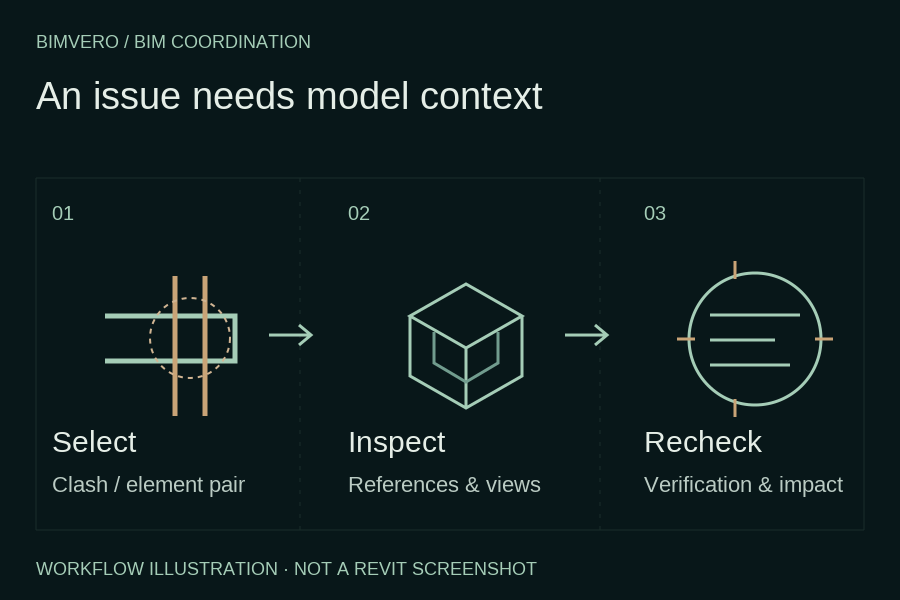
Workflow illustrations explain the tasks and outputs. They are labelled separately from any product captures.
IN PRACTICE
A typical workflow
- Open a saved Revit project copy with the relevant host or linked models and import your Navisworks XML clash report.
- Select a clash from the imported report and navigate directly to its matched elements in Revit.
- Open a suitable suggested working view and inspect the elements with the available graphic overrides.
- After a model change, verify the original pair and review nearby impact before closing the issue.
Requirements for this workflow
- The add-in supports review; the project team makes and approves coordination decisions.
- Verification depends on available model references and geometry. Incomplete checks are not proof that an issue is resolved.
- Model changes can make verification or impact results stale; recheck before relying on them.
- Local impact checks review nearby geometry within search limits; they are not a whole-model clash audit.
What you receive
Available installers are free. Sign in with a verified email address to download for your version of Revit. Free releases require no licence key or subscription.
Return to My add-ins for updates and other available Revit versions.
Questions about BIM Coordination
Does this automatically resolve clashes?
No. It helps locate, inspect and verify issues. Model changes and decisions remain the responsibility of the project team.
Does a passed pair check clear nearby issues?
No. The original pair verification and local impact review are distinct checks. Review nearby findings and any unavailable geometry separately.
Need a different workflow?
Explore custom Revit automation and BIM services for requirements beyond the published plug-ins.